[Java][Android] 알림창 띄우기
오늘은 간단한 알림창을 띄우는 예제를 작성해보도록 하겠습니다. 알림창의 형태는 기본 아이콘이 보여지고 알림 제목, 알림 내용이 들어있는 기본 알림입니다.
1. xml 작성
버튼이 하나 있는 간단한 레이아웃입니다. 버튼 클릭 시 설정한 알림을 띄우도록 구현할 예정입니다.
activity_notification.xml
<?xml version="1.0" encoding="utf-8"?>
<androidx.constraintlayout.widget.ConstraintLayout xmlns:android="http://schemas.android.com/apk/res/android"
    xmlns:app="http://schemas.android.com/apk/res-auto"
    xmlns:tools="http://schemas.android.com/tools"
    android:layout_width="match_parent"
    android:layout_height="match_parent"
    tools:context=".NotificationActivity">

    <Button
        android:id="@+id/btn_set_notification"
        android:layout_width="wrap_content"
        android:layout_height="wrap_content"
        android:text="알림창 띄우기"
        app:layout_constraintBottom_toBottomOf="parent"
        app:layout_constraintEnd_toEndOf="parent"
        app:layout_constraintStart_toStartOf="parent"
        app:layout_constraintTop_toTopOf="parent"
        app:layout_constraintVertical_bias="0.338" />

</androidx.constraintlayout.widget.ConstraintLayout>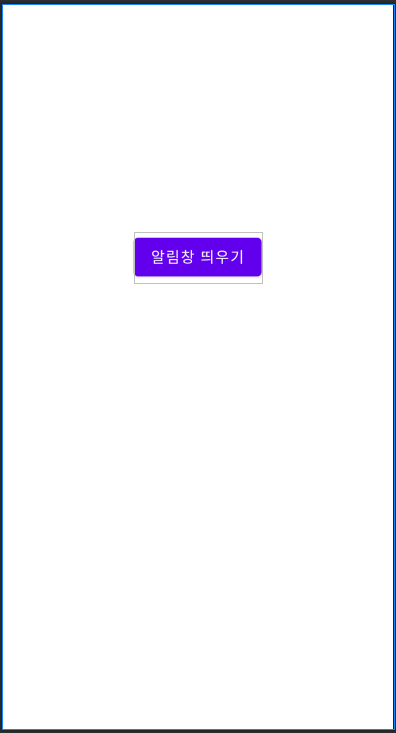
2. 코드 작성
액티비티에서 버튼을 클릭 시 설정해놓은 알림을 띄워주는 코드입니다.
알림채널을 생성하는 메소드와 알림을 띄워주는 메소드를 나누어서 작성했습니다.
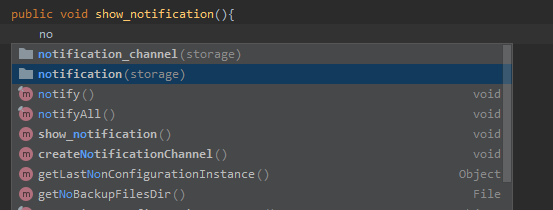
알림채널 생성 코드와 알림 띄워주는 코드는 스틱코드에 저장해놓은 코드를 불러와 빠르게 작성해보았습니다.
아래 url로 이동하시면 코드를 사용하실 수 있습니다.
stickode.com/code.html?fileno=9921 - notification
stickode.com/code.html?fileno=9920 - notification_channel

NotificationActivity.java
public class NotificationActivity extends AppCompatActivity {

    @Override
    protected void onCreate(Bundle savedInstanceState) {
        super.onCreate(savedInstanceState);
        setContentView(R.layout.activity_notification);

        Button btn_set_notification = findViewById(R.id.btn_set_notification);
        btn_set_notification.setOnClickListener(new View.OnClickListener() {
            @Override
            public void onClick(View v) {
                createNotificationChannel();
                show_notification();
            }
        });

    }


    public void show_notification(){
        // 알림 탭 액션 세팅
        Intent intent = new Intent(this, NotificationActivity.class);
        intent.setFlags(Intent.FLAG_ACTIVITY_NEW_TASK | Intent.FLAG_ACTIVITY_CLEAR_TASK);
        PendingIntent pendingIntent = PendingIntent.getActivity(this, 0, intent, 0);

        // 알림 컨텐츠(아이콘, 제목, 내용)와 알림 채널 세팅
        NotificationCompat.Builder builder = new NotificationCompat.Builder(this, "ID")
        .setSmallIcon(R.drawable.ic_launcher_background)    // 알림 스몰 아이콘
        .setContentTitle("notification example title")      // 알림 제목
        .setContentText("notification example content")     // 알림 내용

        // 기본적으로, 알림 텍스트는 한줄로 보이게 된다.
        // 만약 긴 텍스트를 보여주고 싶다먼, setStyle(). 을 통해 확장가능한 알림을 사용하면 된다.
        //  .setStyle(new NotificationCompat.BigTextStyle()
        //          .bigText("Much longer text that cannot fit one line..."))

        .setContentIntent(pendingIntent)    // 유저가 알림을 탭할때 발생할 인텐트를 세팅
        .setAutoCancel(true)                // 유저가 알림을 탭하면 알림이 자동으로 종료됨
        .setPriority(NotificationCompat.PRIORITY_DEFAULT);

        // 알림 보여주기
        NotificationManagerCompat notificationManager = NotificationManagerCompat.from(this);
        notificationManager.notify(1, builder.build());     // 알림채널 id는 각각의 알림마다 세팅해줘야하는 고유의 int값이다.
    }


    // 알림 채널 생성 및 importance 세팅
    private void createNotificationChannel() {
       // 알림 채널 생성
       if (Build.VERSION.SDK_INT >= Build.VERSION_CODES.O) {
           CharSequence name = "channel name";
           String description = "channel_description";
           int importance = NotificationManager.IMPORTANCE_DEFAULT;
           NotificationChannel channel = new NotificationChannel("ID", name, importance);
           channel.setDescription(description);

           // 시스템에 채널 등록하기, 채널 등록 후에는 importance나 알림 행동을 바꿀 수 없다.
           NotificationManager notificationManager = getSystemService(NotificationManager.class);
           notificationManager.createNotificationChannel(channel);
       }
    }
}
show_notification (NotificationActivity.java) 메소드
public void show_notification(){
    // 알림 탭 액션 세팅
    Intent intent = new Intent(this, NotificationActivity.class);
    intent.setFlags(Intent.FLAG_ACTIVITY_NEW_TASK | Intent.FLAG_ACTIVITY_CLEAR_TASK);
    PendingIntent pendingIntent = PendingIntent.getActivity(this, 0, intent, 0);

    // 알림 컨텐츠(아이콘, 제목, 내용)와 알림 채널 세팅
    NotificationCompat.Builder builder = new NotificationCompat.Builder(this, "ID")
    .setSmallIcon(R.drawable.ic_launcher_background)    // 알림 스몰 아이콘
    .setContentTitle("notification example title")      // 알림 제목
    .setContentText("notification example content")     // 알림 내용

    // 기본적으로, 알림 텍스트는 한줄로 보이게 된다.
    // 만약 긴 텍스트를 보여주고 싶다먼, setStyle(). 을 통해 확장가능한 알림을 사용하면 된다.
    //  .setStyle(new NotificationCompat.BigTextStyle()
    //          .bigText("Much longer text that cannot fit one line..."))

    .setContentIntent(pendingIntent)    // 유저가 알림을 탭할때 발생할 인텐트를 세팅
    .setAutoCancel(true)                // 유저가 알림을 탭하면 알림이 자동으로 종료됨
    .setPriority(NotificationCompat.PRIORITY_DEFAULT);

    // 알림 보여주기
    NotificationManagerCompat notificationManager = NotificationManagerCompat.from(this);
    notificationManager.notify(1, builder.build());     // 알림채널 id는 각각의 알림마다 세팅해줘야하는 고유의 int값이다.
}
유저가 알림을 탭할시 발생될 액션을 PendingIntent를 통해 세팅해줍니다. 여기선 탭할 시 NotificationActivity로 이동하도록 했습니다.
그 다음 알림 컨텐츠와 알림 채널을 세팅해주었습니다. 알림 컨텐츠는 기본적으로 작은 아이콘, 제목, 내용이 들어가야 되고 추가적으로 다른 내용들을 넣을 수 있습니다. 추가적인 내용은 안드로이드 디벨로퍼 사이트를 참고하시면 됩니다.
3. 결과
위 내용대로 구현하면 아래와 같은 결과를 확인하실 수 있습니다.
동영상 서비스가 종료되어 해당 콘텐츠를 재생할 수 없습니다.